admin
admin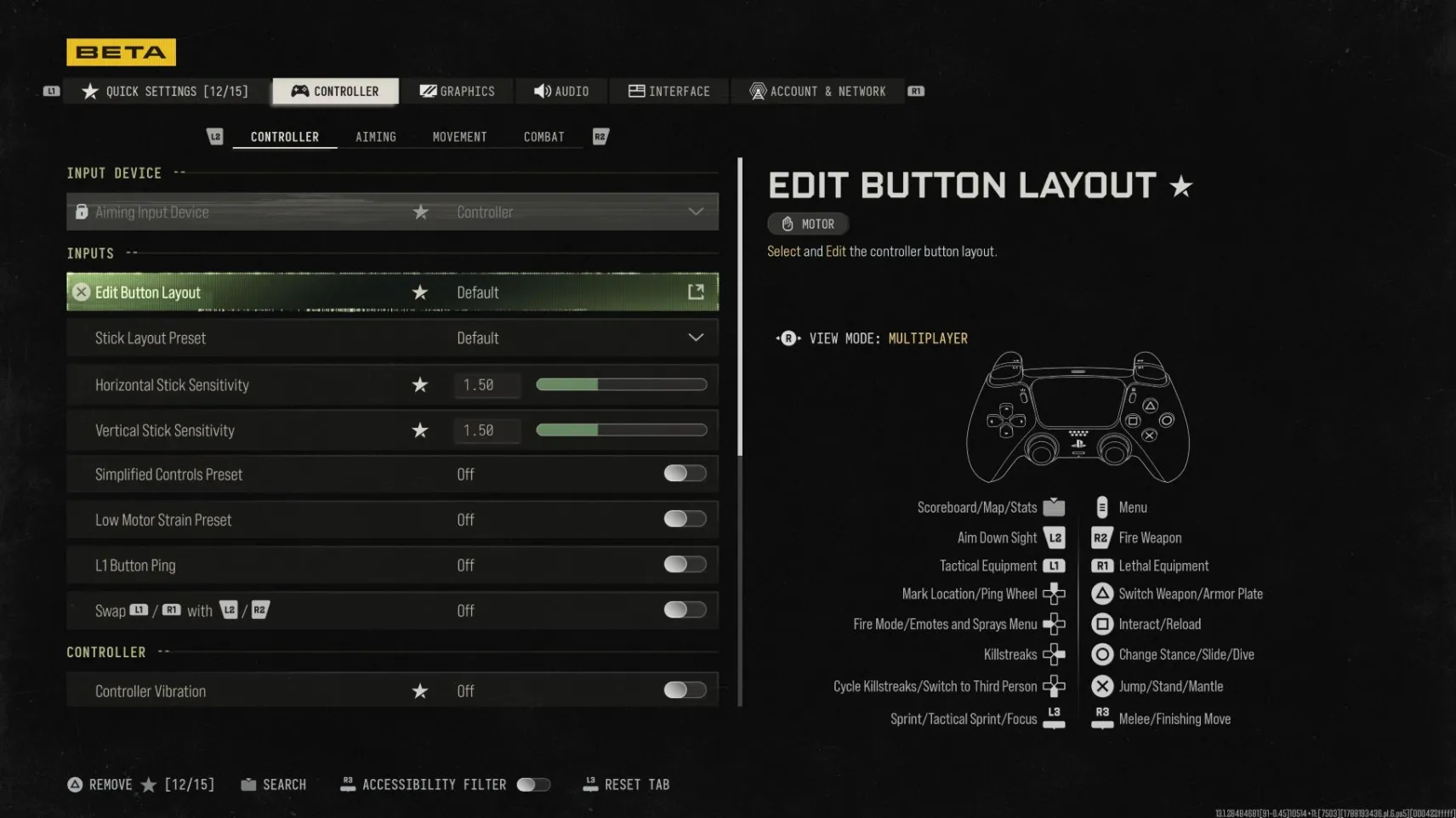
If you’re jumping into Modern Warfare 4 on console, your controller settings can make or break every gunfight. Even great aim and map knowledge won’t save you if your sensitivity feels off or your button layout slows down your reactions. We’ve put together a complete controller guide with recommended layouts, sensitivity values, and extra tweaks to help you dominate multiplayer matches.
Let’s start with controller button layouts. Many veteran CoD players swear by the Tactical preset. This layout swaps crouch/prone to the right stick click, letting you drop to cover without taking your thumb off the aim stick. That’s a massive advantage in fast close-quarters fights. If you prefer a simpler setup, Default works fine for new players, while Bumper Jumper is a strong alternative for those who want to jump without lifting their thumb. Test each preset and stick with whichever feels most natural for your playstyle.
Next is sensitivity, arguably the most important setting for controller players. A good baseline horizontal and vertical sensitivity sits around 6. If you find yourself overshooting targets constantly, lower it to 5. If turning feels sluggish when enemies flank you, slowly bump it up to 7 or 8. Don’t rush huge changes — adjust by 0.5 increments.
Your ADS sensitivity multiplier matters too. Most pro players use somewhere between 0.80 and 0.90. This keeps your aiming slower and more precise when aiming down sights, while maintaining faster hipfire movement. Aim Response Curve Type should be set to Dynamic for most players, giving smooth acceleration that feels responsive without being twitchy.
Don’t forget deadzone settings. Too large a deadzone and your stick will feel unresponsive; too small and you’ll get unwanted stick drift. For most modern PS5 and Xbox controllers, a 0.05 minimum deadzone on both sticks is a solid starting point. Aim assist stays enabled for console multiplayer, and we recommend leaving it on for most players.
Beyond controller values, there are extra quality-of-life tweaks to consider. Turn off controller vibration, as rumble can shake your aim during fights. Adjust trigger effects if your DualSense or Elite controller supports it. You can also fine-tune audio and graphics settings to boost visibility, turning motion blur and film grain off so enemies are easier to spot.
Keep in mind: these are baseline recommendations. The “perfect” settings always come down to personal preference. Spend some time in private matches to test and tweak everything before hopping into ranked or multiplayer lobbies. Small adjustments can drastically improve your accuracy and reaction speed.
Whether you’re chasing ranked wins or just want smoother gameplay, this controller setup will give you a strong foundation in Modern Warfare 4.
What controller layout and sensitivity do you use for MW4? Share your go-to settings in the comments below.